

Good news for owners of Excel files that have accompanied the shop for years: that data is not wasted. It’s your migration capital. The news to accept gracefully: some of it needs cleaning first — and some is better left behind.
Data worth bringing (in priority order)
1. Products & parts stock — the star of the migration. Needed per row: SKU/code, name, category, unit, opening stock. This is what the official import template carries.
2. Customers — name and phone number suffice; long histories don’t have to come. Active customers “rebuild” their data with each new transaction.
3. The repair lists — brands, fault types, and services with prices. For a workshop that means vehicle makes, complaint types, and services like scheduled maintenance, an oil-and-filter change, or wheel alignment. Usually faster to enter directly (dozens, not thousands) than to force through a file.
4. Open receivables & payables — who owes what. Vital so collections don’t break during the transition.
What NOT to bring
Years of historical transactions. This is what stalls most migrations — for little value: your old reports still live in that Excel file (archive it), and the new system deserves a clean starting point, not an inheritance of inconsistent formats. The practical rule: the new system records from today; the past is represented by opening stock and open balances.
Clean before departure
An Excel file that’s lived for years carries little diseases that refuse to import:

The cleaning checklist: (1) one product per row — merge same-item-different-spelling duplicates; (2) number columns must truly be numbers — “1.000” styled as text gets rejected; (3) consistent units (“pcs”, not a mix of “Pcs/pc/pcs ”); (4) product names following the standard you intend to live with — read the naming standard before importing, because tidying afterwards costs far more.
Import: let validation work
The import itself is designed to be forgiving: download the official template, copy your data in, upload — and every row is validated before anything lands.
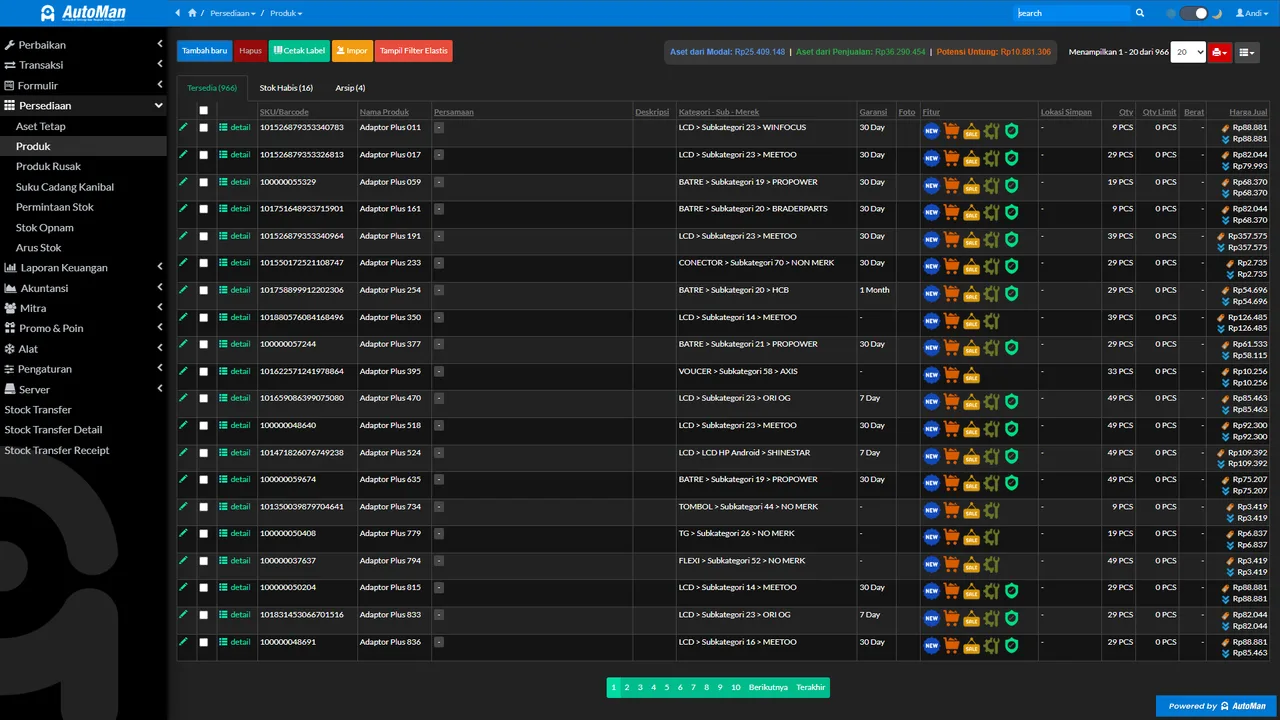
Don’t be discouraged if the first attempt returns an error list — that’s validation saving you from dirty data sneaking in. Fix in Excel, upload again; two or three rounds is normal. When a file keeps getting rejected, the import troubleshooting guide covers the four classic causes.
After the data lands
Three closers that make the migration complete: spot-check 10–15 products (name, unit, opening stock correct); enter the open receivables/payables so collections continue; then — most important — retire the old file from daily circulation. An Excel still updated “just in case” is the surest way to own two versions of the truth, which is worse than one imperfect version.
Data migration isn’t a one-shot exam; it’s a doorway. Once stock and customers are inside, the first-30-minutes flow takes over.