

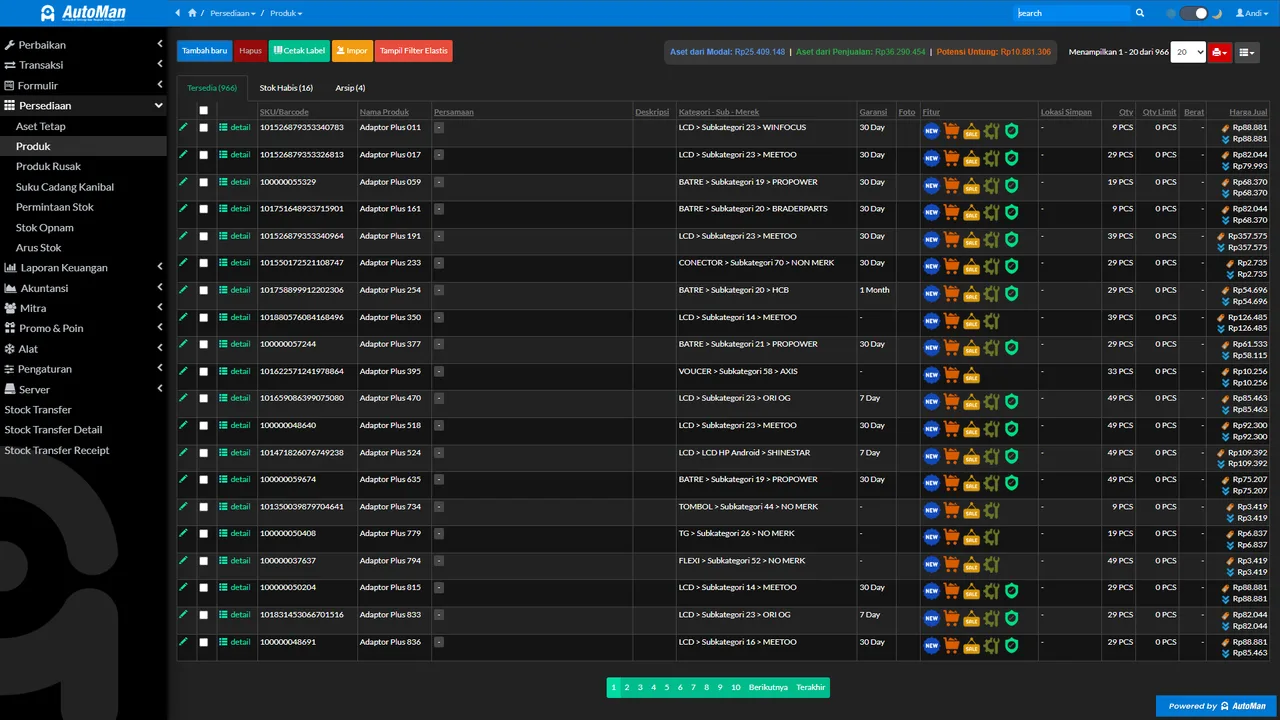
 An Automan screen related to this article.
Almost every import error is rooted in the file, not the system — which is good news, because the file is something you can fix yourself. These four checks resolve most cases.
1. Use the latest template
Re-download the template from the app every time you import. Old files — especially ones copied from another shop — can differ from the current column layout. Never add, remove, or reorder the template’s columns.
2. Fill the required columns
Rows with empty required columns (product name, unit) are rejected by validation. Read the validation message: it usually names the exact row and column at fault.
3. Clean up duplicate SKUs/names
One product, one row. An SKU or name that appears twice creates doubles or gets rejected. Run a duplicate check in Excel/your spreadsheet before uploading.
4. Fix number formats
Number columns (stock, price) must be genuine numbers: no text-style thousand separators, no units glued on (“10 pcs”), no stray spaces. Cells formatted as text are the most invisible cause of import errors.
After fixing
Upload again, read the validation result once more, and once it passes — spot-check a few products and their stock cards. The full flow lives in the spare parts inventory feature.