

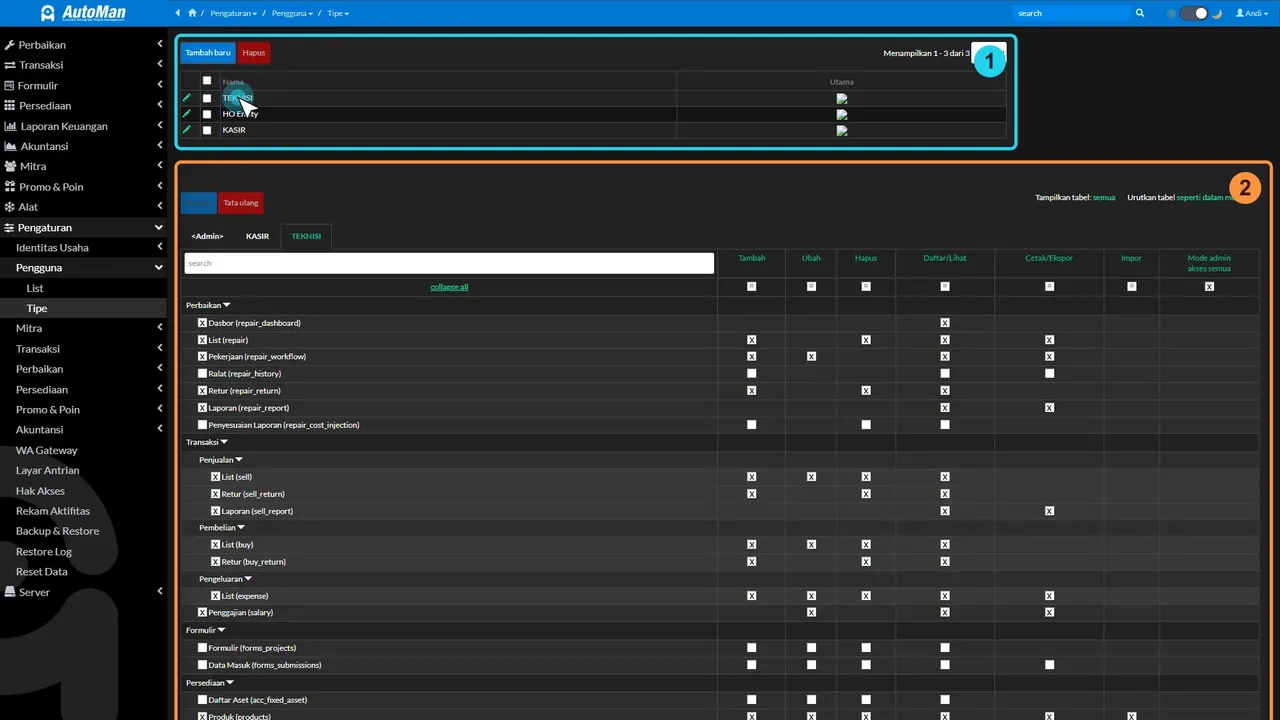
 An Automan screen related to this article.
Menus in Automan aren’t static: what appears follows the installed modules, each module’s active period, and the permissions of the logged-in user. So a “missing menu” is almost always one of those three — and this checking order finds which one in minutes.
Checking order
- Check installed modules. Open the module settings: is the module whose menu you’re looking for actually active? An uninstalled module shows no menus at all.
- Check the module’s active period. A premium module past its active period also hides its menus — check its status.
- Check the user’s group. Users attach to groups; groups determine access. Make sure the user sits in the right group.
- Check the group’s permissions. In access settings, confirm the group has access to the table/menu in question.
- Log out, log back in. Permission changes take full effect on a fresh session.
Telling the causes apart quickly
- Menu missing for everyone including the admin → almost certainly a module issue (steps 1–2).
- Menu present for the admin but missing for one user → a permission issue (steps 3–4).
If it still doesn’t appear
Use shadow login as that user to see exactly what they see, and compare their group’s permissions with a group whose menus are fine. The full guide to roles lives in access control & audit.