

Importing Products and Stock from Excel
You already have your product list in Excel. Hundreds of rows, years of work. And now a new application is asking you to retype it one line at a time.
You do not have to. The Excel import moves that list across as it is, provided the columns follow the template.
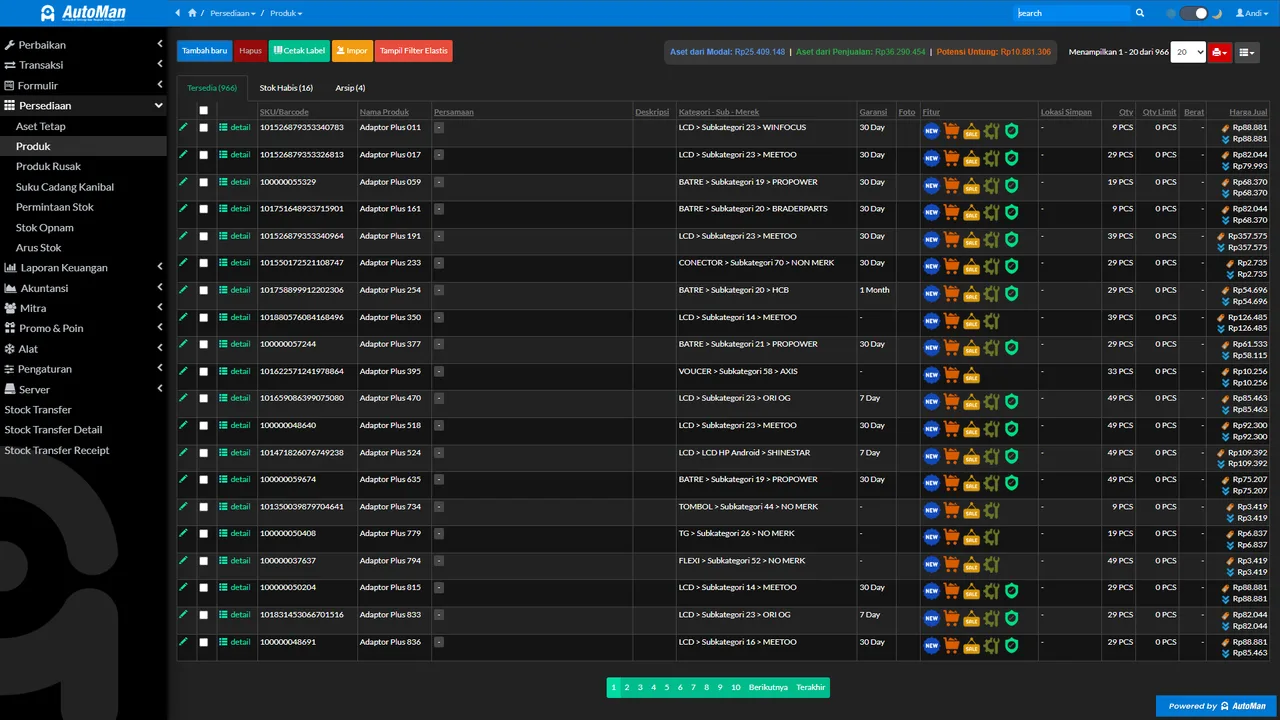
The principle that saves the most tears: clean in Excel, not after import. Duplicates, number formats, and inconsistent names are far easier to fix in a spreadsheet than to correct one by one after they’ve become master data. And since an import changes a lot of data at once — back up first, always.
The Impor Produk page itself is now a five-step wizard: Unggah (Upload), Cocokkan Kolom (Match Columns), Cocokkan Data Induk (Match Master Data), Pratinjau (Preview), then Jalankan (Run). You do not need to memorize the order — the app walks you through it, with automatic column guesses and a dry-run preview before a single row is actually saved.
Before you start
- The import template from the app.
- Product data already cleaned (no duplicate SKUs/names).
- A backup made before any big import.
- Know the file limits: 10 MB and 20,000 rows per import.
Steps
-
Download the import template
Open Persediaan → Produk, choose Import on the product list, then download the latest template from the Impor Produk page. Never use an old file whose columns may have changed; the app UI is in Indonesian.

Always start from the app's latest template. -
Fill the data per the template's columns
Nama Produk (product name), Kategori (category), and Satuan (unit) are required; Sub Kategori (sub-category), Merek (brand), SKU, Qty, Harga Beli (cost), and Harga Jual (price) are supplementary. Fill only the columns the template asks for — never add your own.

Fill only the columns the template asks for — never add your own. -
Clean duplicates and number formats
One product per row; SKUs/names must not repeat. Make sure number columns hold real numbers (not text with thousands separators).

One product per row; number columns must be real numbers. -
Upload the file — step 1 of the Impor Produk wizard
Return to Persediaan → Produk → Impor and upload the cleaned file. The limit is 10 MB and 20,000 rows per upload — split larger files into batches. The page is now a five-step wizard: Unggah (Upload) → Cocokkan Kolom (Match Columns) → Cocokkan Data Induk (Match Master Data) → Pratinjau (Preview) → Jalankan (Run), and it walks you through each one.

Wizard step 1: upload the cleaned file, max 10 MB / 20,000 rows. -
Cocokkan Kolom (Match Columns) — step 2
Automan guesses each of your file's columns against its own "Kolom Automan" (Automan Column) dropdown, so you are usually just checking the guess rather than mapping from scratch. Unrecognized columns in your file can simply be left unmatched — that will not fail the import. Only Nama Produk, Kategori, and Satuan must be matched. Press Lanjut (Next) once it looks right, or Kembali (Back) to pick a different file.
-
Cocokkan Data Induk (Match Master Data) — step 3
Here you decide, for every distinct Kategori, Sub Kategori, Merek, and Satuan value in your file, whether to reuse what already exists in the store or create a new one. Check this carefully — a name that differs only by punctuation or a stray space (e.g. "Oil" vs "Oil ") can slip through as an unwanted new category or brand.
-
Check the Pratinjau (Preview) before pressing Run — step 4
This is a dry run: the system shows which rows are valid and which are still problematic before anything is actually saved. Do not skip it — fixing a problem row now is far cheaper than untangling it after it has mixed in with store data.

Wizard step 4: check the Pratinjau (preview) — do not skip this part. -
Jalankan Impor (Run Import) — step 5, the final step
Once the preview is clean, press Jalankan Impor to commit it. The rows that were valid in the preview are written in as product data and opening stock.
-
Fix errors if any
If the preview or the run still leaves problem rows, correct them in the Excel file, then repeat from the Upload step. Fixing before the data enters is far cheaper than correcting after it's mixed in.

Cheaper to fix before entry than to correct after mixing. -
Check products and stock cards after the import
Open a few products at random and check them in Persediaan → Arus Stok (the stock movement history): names right, units right, opening stock landed as a batch on the stock card.

Check a few random products: name, unit, and opening stock correct.
What you end up with
Product data and opening stock moved from Excel into Automan with validated results — without retyping row by row.
If something goes wrong
The auto-match got a column wrong at Cocokkan Kolom
Re-pick the correct pairing from the "Kolom Automan" dropdown yourself — no need to re-download the template. Columns you do not use can stay unmatched; that will not fail the import as long as Nama Produk, Kategori, and Satuan are matched.
Duplicate products after the import
Clean duplicate SKUs/names in Excel before importing — dedup is much harder once the data is in.
Not sure the opening stock is right
Import the minimum first, then run a stock count to reconcile against the shelf.
The file gets rejected before it is even processed
Check the two limits: 10 MB and 20,000 rows per file. If your data is larger, split it into batches and import in stages.
A new category or brand appeared when you meant to reuse an existing one
This usually happens at Cocokkan Data Induk — a slightly different spelling in Excel (extra space, capitalization, abbreviation) reads as a new value. Standardize the spelling in Excel first if it is really meant to be the same category/brand, then re-import.
Pratinjau (the preview) shows a lot of problem rows
That is exactly what the preview step is for — a dry run before anything is saved. Fix them in Excel, re-upload, and do not press Jalankan Impor until the problem count looks sane.