

Recording Sales at the Register (POS)
Not all money arrives through repairs. Someone buys oil, a case, or a charging cable — walks in, pays, leaves, with nothing left behind on your bench.
Those are the transactions most often missed, precisely because they are quick. Yet they reduce stock and add profit exactly like every other sale.
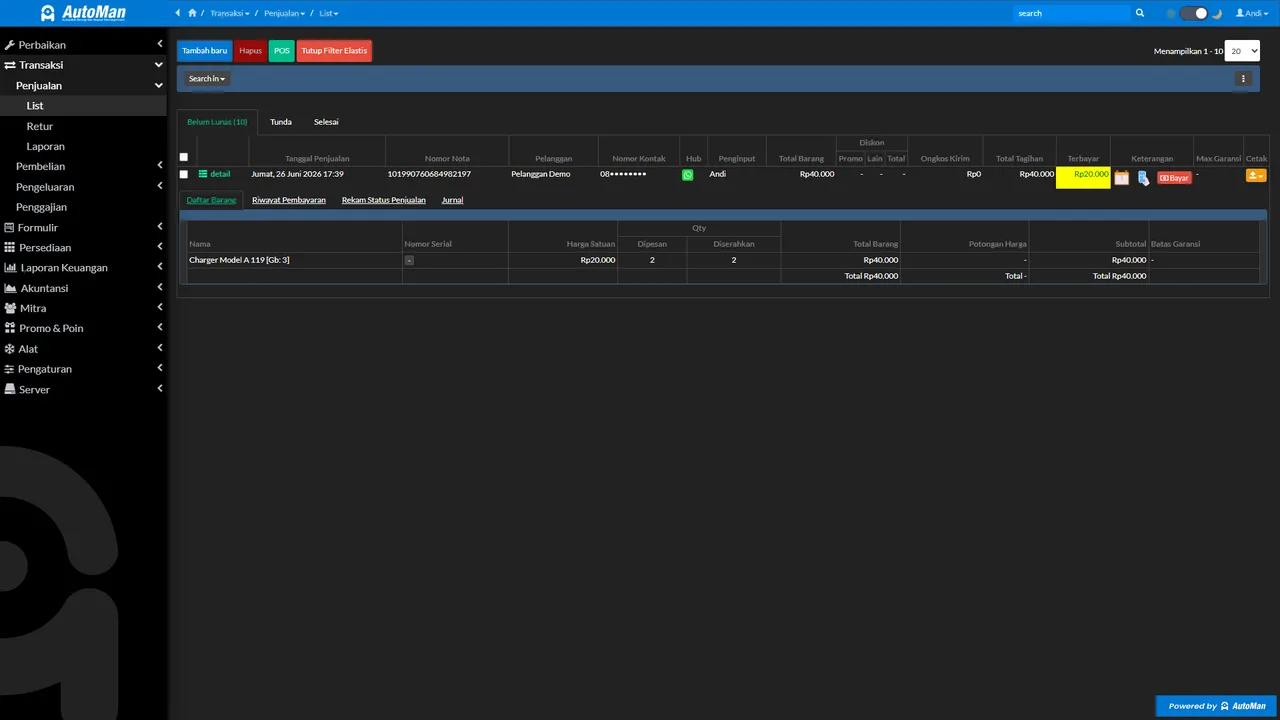
The principle this flow protects is simple: every item that leaves must pass through the register, so stock, money, and reports always tell the same story. Sales “to be recorded later” are the single most common source of stock that doesn’t match the shelf.
Before you start
- Products and stock already recorded (from purchases or import).
- Payment channels (money pockets) already configured.
Steps
-
Open Transactions → Sales
All direct sales — parts, accessories, anything else — are recorded here, never mixed into repair transactions.

All direct sales go through the register, separate from repairs. -
Pick a customer, or skip for walk-ins
Walk-in buyers can stay nameless. But for warrantied goods or regulars, pick/add the customer (quick-add) — their purchase history and warranties become searchable again.

Walk-ins can stay nameless; warrantied goods deserve a name. -
Search or scan the product
Type the name/SKU or scan the barcode. The product lands in the cart with its selling price and remaining stock visible.

Search or scan — selling price and remaining stock visible at once. -
Set qty, price, and discounts within limits
Adjust the quantity for multiples. Manual discounts follow the limits the owner set per role — a cashier can't discount past their authority.

Manual discounts follow the authority limits the owner set. -
Skip or fill the Promo & Poin section
There is a section of its own called 3. Promo & Poin, holding Kode kupon (coupon code) and Poin. If the buyer has a promo code, type it and press Terapkan — the reduction lands before payment is calculated. Poin redeems a registered customer point balance. Leave it empty when neither applies; this section never blocks the sale.

Payments can combine pockets; terms become a scheduled receivable. -
Choose the payment method
Cash, transfer, e-wallet, or a combination across pockets (split). Sales to registered customers can also run on terms — the remainder is recorded as a receivable with a due date.

Save once — the system blocks duplicate receipts from double clicks. -
Press Proses — or Tunda when the sale is not finished
The button is called Proses, not Save, and Tunda sits beside it. Proses closes the transaction so you can print the receipt or send it by WhatsApp. Tunda parks it as an unfinished order — useful when the buyer is still choosing and there is a queue behind them. If the button gets double-clicked on a slow network, the system prevents duplicate receipts.

At day's end, just read the report — no manual recap. -
Check stock and the daily report
Stock deducts automatically from sales. At day's end, the sales report and pocket balances are simply read — no manual recap.
-
Services and negotiated prices now fit on the same invoice
Two switches in sales settings extend this screen: selling services on the same invoice as goods, and changing the price per line while negotiating in front of the customer. The server still stops a price falling below that product Floor Price.
What you end up with
The sale recorded with stock auto-deducted, payment landing in the right pocket, receivables (if on terms) scheduled, and the receipt reaching the customer.
If something goes wrong
Product not found in search
Check the name/SKU spelling. If the product genuinely isn't in the master, add it via product quick-add — no need to leave the register.
Price or discount can't be changed
That's your role's authority limit. Per-role discount limits are set by the owner — ask the owner/admin when an exception is genuinely needed.
On-screen stock doesn't match the shelf
Finish the transaction with the correct qty first, then schedule a stock count to reconcile system stock with the physical shelf.
Related tutorials
- Tutorial
Sales Returns in Automan
When sold goods come back: a traceable return.
- Tips
Limit Manual Cashier Discounts
How the owner sets discount limits per role.
- Feature
POS & Sales
The full register feature behind this tutorial.
- Tutorial
Selling Services and Changing Price at the Till
How to enable both, and why Floor Price has to be filled in first.