

Running a Stock Count in Automan
A customer asks for a part. The system says three in stock. The shelf says none.
A gap like that never appears all at once — it accumulates from dozens of small moments nobody had time to record. A stock count is not an annual ritual; it is how you find the cause while you can still remember it.
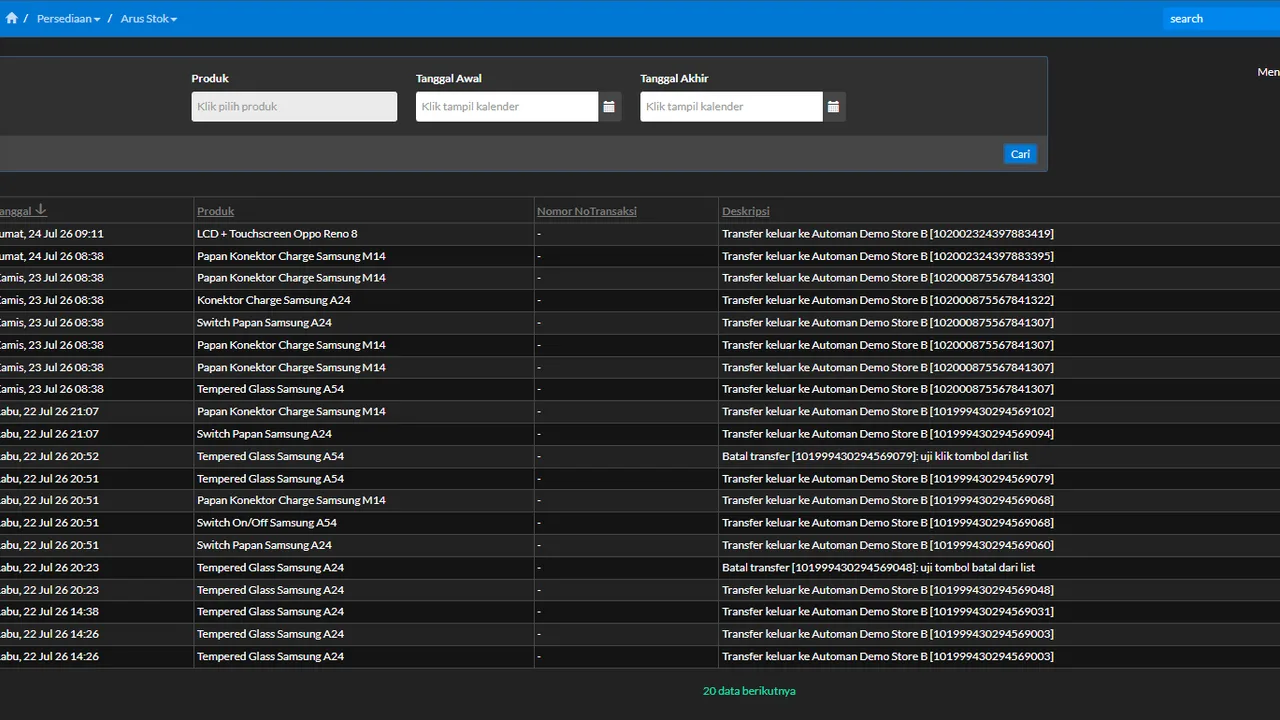
One principle separates a proper count from “editing stock”: differences are settled through traceable transactions, never by quietly changing numbers. A number may be wrong today; what’s never allowed is a number that changed without anyone knowing why.
Before you start
- Products and stock already recorded in the system.
- A quiet window with no running transactions (before opening or after closing).
Steps
-
Pick a time with no running transactions
Counting is most accurate when nothing moves in or out: before opening, after closing, or shelf-by-shelf blocks in quiet hours.

An accurate count needs a pause with nothing moving in or out. -
Open Inventory → Stock Count
Start the count session from the Inventory → Stock Count menu. A count can cover everything or a section (per category/shelf) — what matters is consistency until it's done.

Full or per-shelf/category — what matters is consistency. -
Count each product physically
Count what's genuinely on the shelf/in the drawer. Two people work better: one counts, one records.

Two people work better: one counts, one records. -
Enter the counted quantities into the system
Enter the physical numbers as they are — never "match" them to the system's figure. The difference is exactly what you're hunting.

Enter it as it is — the difference is what you're hunting. -
Read the difference list
The system compares recorded vs physical stock and shows the difference per product — what's over, what's short.

The system shows what's over and what's short. -
Confirm the stock adjustment
The adjustment is recorded as a traceable count transaction — not a quiet edit of the stock number. The stock card can still tell when and why stock changed.

A traceable adjustment on the stock card — not a quiet edit. -
Follow up on the causes
A difference is a symptom. Find the pattern: parts used in repairs but unrecorded, sales without receipts, or goods moved between shelves. Fix the habit so the next count's differences shrink.

The difference is a symptom — fix the habit behind it.
What you end up with
System stock matches the shelf, every adjustment traceably recorded on the stock card, and the drift-cause patterns identified for fixing.
If something goes wrong
Large differences across many products
Don't adjust everything at once. First check unrecorded transactions (repairs/sales in progress), then recount the products with the largest differences.
Stock changing while the count runs
A transaction is running mid-count. Finish/stop the transaction first, then recount the affected section.
Unsure whether editing stock directly without a count is okay
Avoid it — trackless stock changes make the stock card untrustworthy. Always go through a count or a traceable transaction (purchase/return).