

Recording Shop Expenses and Operating Costs
Rent, electricity, coffee for waiting customers, delivery charges, fixing the compressor. Money leaves all day through a door that appears in no record anywhere.
While expenses go unrecorded, your profit and loss tells half a story — big revenue, vague costs, and you wondering where it all went.
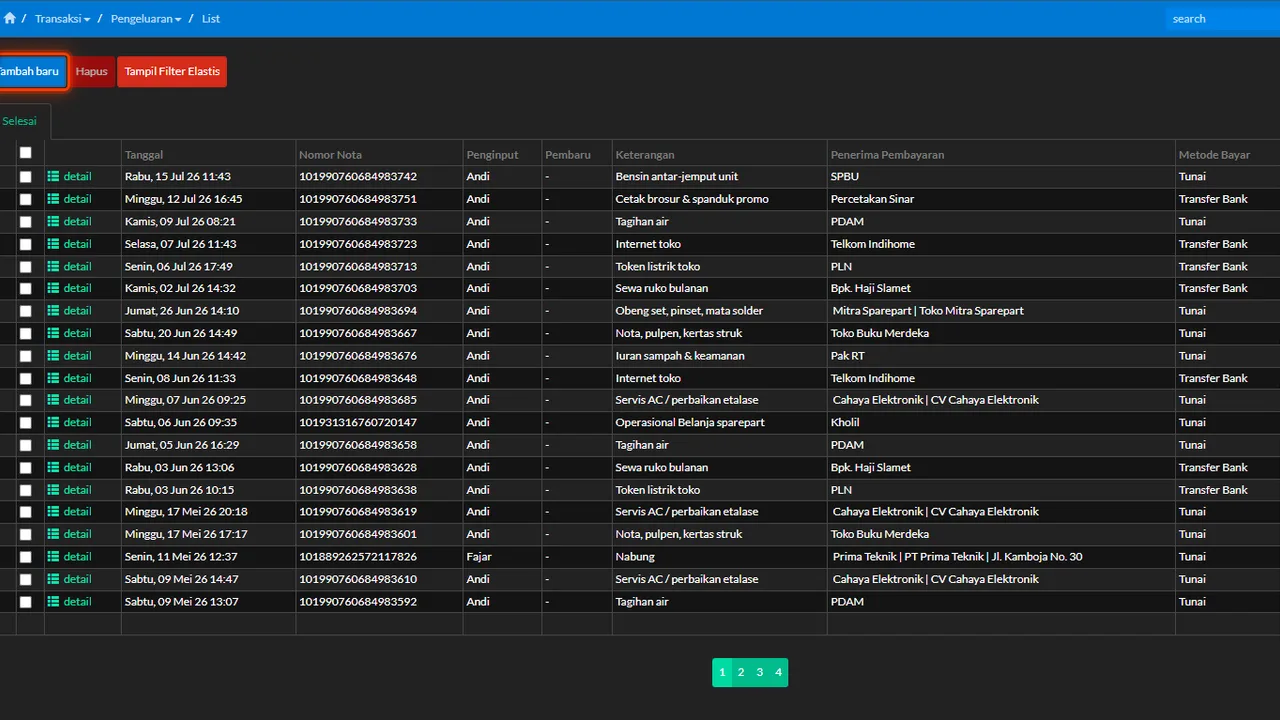
One practical rule: every unit of money leaving the shop’s pocket needs a record — however small. An unrecorded small expense three times a day quietly becomes a serious monthly sum that can never be explained.
Before you start
- Payment channels (money pockets) already configured.
Steps
-
Open Transactions → Expenses
All money leaving outside stock purchases is recorded here: electricity, rent, internet, meals, transport, and the like.

All money out beyond stock purchases is recorded here. -
Pick or create an expense category
Categories make the P&L readable per cost type. A few broad categories are enough at first — never so detailed that recording becomes a chore.

Broad categories first — consistency matters most. -
Fill in the event date, not the input date
Paid the electricity yesterday but recording it today? Enter yesterday's date. Period reports follow this event date.

Period reports follow the event date you choose. -
Fill in the amount and a short note
A short note ("shop electricity, June") makes the number recognizable when re-read in reports.

A short note makes the number easy to re-read in reports. -
Pick the Kantong Pengirim and Metode Bayar
Kantong Pengirim is the pocket the money leaves — cash drawer, bank account, or e-wallet — and that balance is what drops. Never pay shop expenses from personal money without recording it; if you must, still record it here so the P&L does not lie.

The chosen pocket's balance is what drops. -
Name the recipient, then attach Bukti Transaksi
There is a Jenis Penerima Pembayaran field with two options: Vendor for a registered party, or Custom for one-off spending like coffee and parking. While you are there, attach Bukti Transaksi — a photo of the receipt. Three months from now, one photo is far more reassuring than a bare figure with no explanation.

Expenses read immediately in cash flow and P&L. -
Press Proses, then check the reports
The button is called Proses. There is also a Pending status for spending that is approved but not yet paid. Once processed, the figure reads immediately in cash flow and P&L, and the pocket's balance drops to match.
What you end up with
Every bit of money leaving the shop recorded with the right category, event date, and pocket — the P&L shows profit after real costs.
If something goes wrong
The expense doesn't show in this period's P&L
Check the expense date entered — reports follow the event date you chose, not when the data was input.
Picked the wrong paying pocket
Correct it through the traceable correction flow — never delete-and-recreate, so the financial trail stays traceable.
Unsure whether it's an expense or a stock purchase
Goods to sell/use in repairs = a purchase (enters stock). Operational costs consumed = an expense. In doubt, ask: does this item add stock or not?