

Recording Parts Purchases in Automan
Goods arrive from the supplier, go straight onto the shelf, and the invoice goes into a drawer. Done — until month end, when you work out your profit and the number looks suspiciously good.
Usually because the cost price never made it into the system. Recording purchases is not about tidiness; it is the only way your profit gets calculated from real numbers.
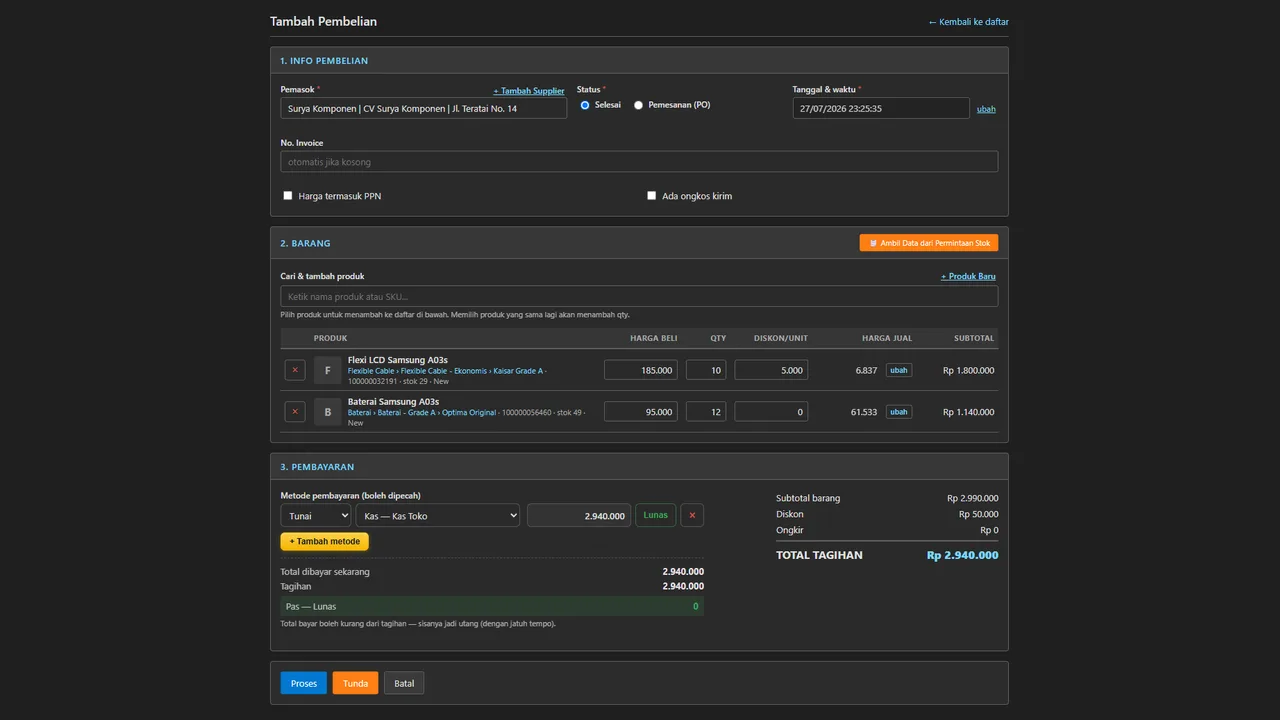
Purchasing is upstream of nearly every number the shop cares about — stock, COGS, profit. Record it wrong here and the error spreads to every report. The good news: the form is built for speed — new suppliers and products can be added without leaving the flow.
Before you start
- Suppliers and products available — or use quick-add straight from the form.
Steps
-
Open Transactions → Purchases → Add
The purchase form is the entry door for all stock — make it habit that goods always come in through here.

Make it habit: all goods enter through this purchase form. -
Pick a supplier or quick-add a new one
New suppliers can be added without leaving the form (quick-add). Supplier data matters later for payables and warranty claims.

New suppliers can be added without leaving the form. -
Search for a product or quick-add one
Product search runs live. Products not yet in the master can be created via quick-add — name, SKU, category, unit — and used immediately.

Products not in the master get created via quick-add, used at once. -
Fill in qty, qty received, price, discount, and serials where applicable
Distinguish quantity ordered from quantity received when goods arrive in stages. The price history helps you check the last purchase price.

Distinguish qty ordered vs qty received when goods arrive in stages. -
Fill in shipping and its allocation method when used
Shipping allocated onto the items makes per-unit cost more honest — profit stops looking fatter than reality.

Allocated shipping makes per-unit cost more honest. -
Fill in the payment
Cash, transfer, credit terms (with a due date), or a combination (split) per your agreement with the supplier.

Payment can combine several pockets (split) or run on terms. -
Press Proses — or Tunda while the goods are still coming
The button is called Proses, not Save. Once processed, stock enters per batch with its cost, and the payable (if on terms) is recorded with its due date. Tunda sits beside it for an order that is agreed but not yet delivered — the natural partner to the "Pemesanan (PO)" status in the first section.

After saving: stock in per batch, term payables scheduled. -
Check the per-batch stock and the supplier payable
Open the product's stock card to see the newly formed batch, and the payables report to confirm the payment schedule is right.

Check the stock card and payables report to confirm the result.
What you end up with
Stock enters per batch, cost prices stored correctly, payables/payments recorded, and the transaction ready to read in reports.
If something goes wrong
The product isn't in the master yet
Use product quick-add from inside the form — no need to leave the purchase flow.
Goods arriving in stages
Fill qty received with what actually arrived; the rest follows at the next receiving.
The purchase price changed from usual
Check the price history on the form to compare with previous purchases.