

How to Reset Your Store App Data Safely
There are legitimate moments to start clean: the trial period is over, practice data is mixed in, and you want the shop to launch from a tidy zero — without creating a new Store App. That’s what the data reset is for.
Two golden rules for this tutorial: always back up first, and a reset is not a correction tool — wrong transactions are settled through traceable corrections/returns, never by erasing history.
Before you start
- Owner/admin access.
- A FRESH backup made right before the reset (mandatory — see the backup tutorial).
Steps
-
Understand when a reset is actually the answer
A reset fits: clearing trial data after a practice period, or starting a clean period after system testing. A reset is NOT for correcting wrong transactions — that's the job of traceable corrections/returns.

Reset for a clean start — never for transaction corrections. -
Back up first — no exceptions
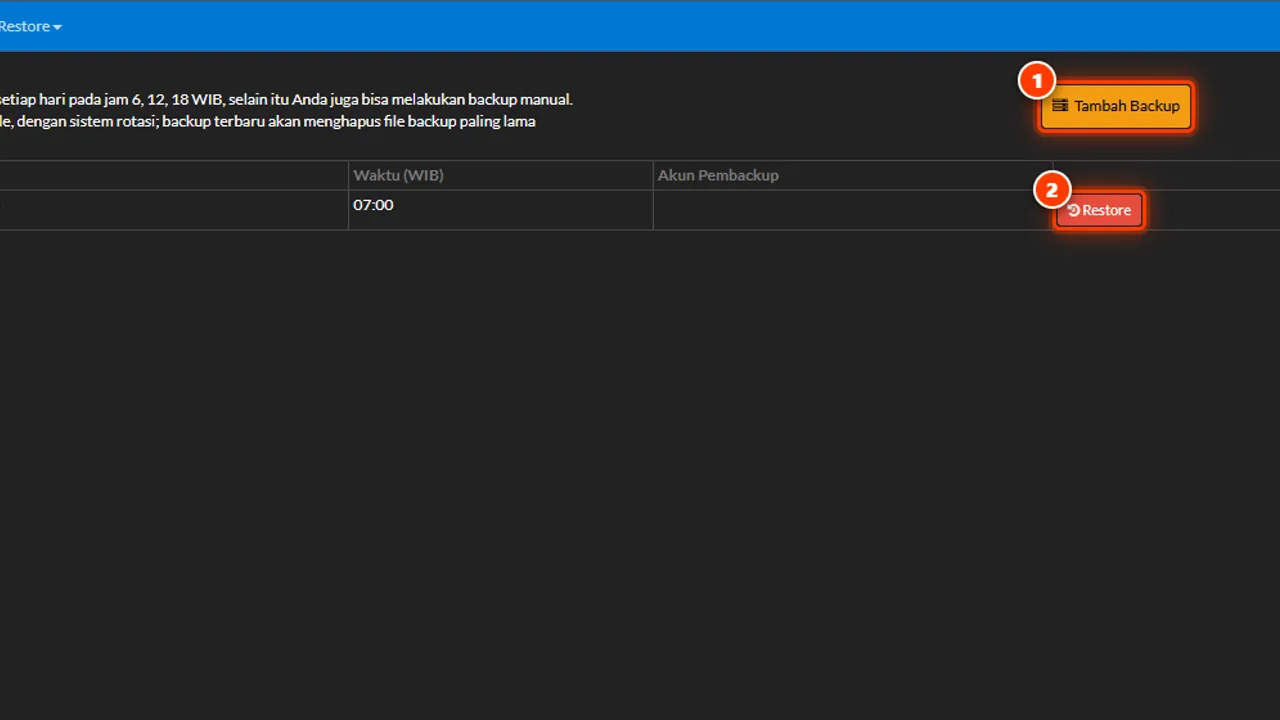
Create a fresh backup in Settings → Backup & Restore and wait for it to finish. A reset deletes data permanently; the backup is the only way back.

A fresh backup = the only way back. -
Open the Reset Data menu
The reset feature lives in the Store App's settings/tools area and is visible only to accounts with admin permission.

Visible only to accounts with admin permission. -
Pick the data categories to reset
Resets in Automan are per category — you choose which data groups get deleted (e.g. transaction data) and which stay (e.g. product master, customers). Read each option slowly; never tick everything blindly.

Per category: pick what's deleted, keep the rest. -
Confirm and run
The system asks for confirmation before executing. Double-check the chosen categories once more, then run it and wait until the process is declared complete.

Read it once more before running. -
Verify the result before operating again
Check the related menus: the data you wanted gone is gone, the data you wanted kept is intact, and new transactions record normally. Only then does the shop resume.

Confirm the result before the shop resumes.
What you end up with
The intended data cleanly deleted per category, important data intact, and a backup standing as the return point — the shop starts a new period without rebuilding the Store App from zero.
If something goes wrong
The reset menu isn't visible
The feature follows admin permissions — log in with an owner/admin account. Still missing? Check the modules and contact support.
Reset the wrong category
This is what step 2's backup is for: restore via Settings → Backup & Restore from the backup made right before the reset.
Only want to remove one wrong transaction
Don't use a reset. Use a correction/return on that transaction — the fix is traceable and no other data gets sacrificed.