

How Customers Check Their Repair Status
“Is mine ready yet?”
Asked a dozen times a day, interrupting your technicians, and the answer is always the same: not yet. The tracking page moves that question into the customer own hands.
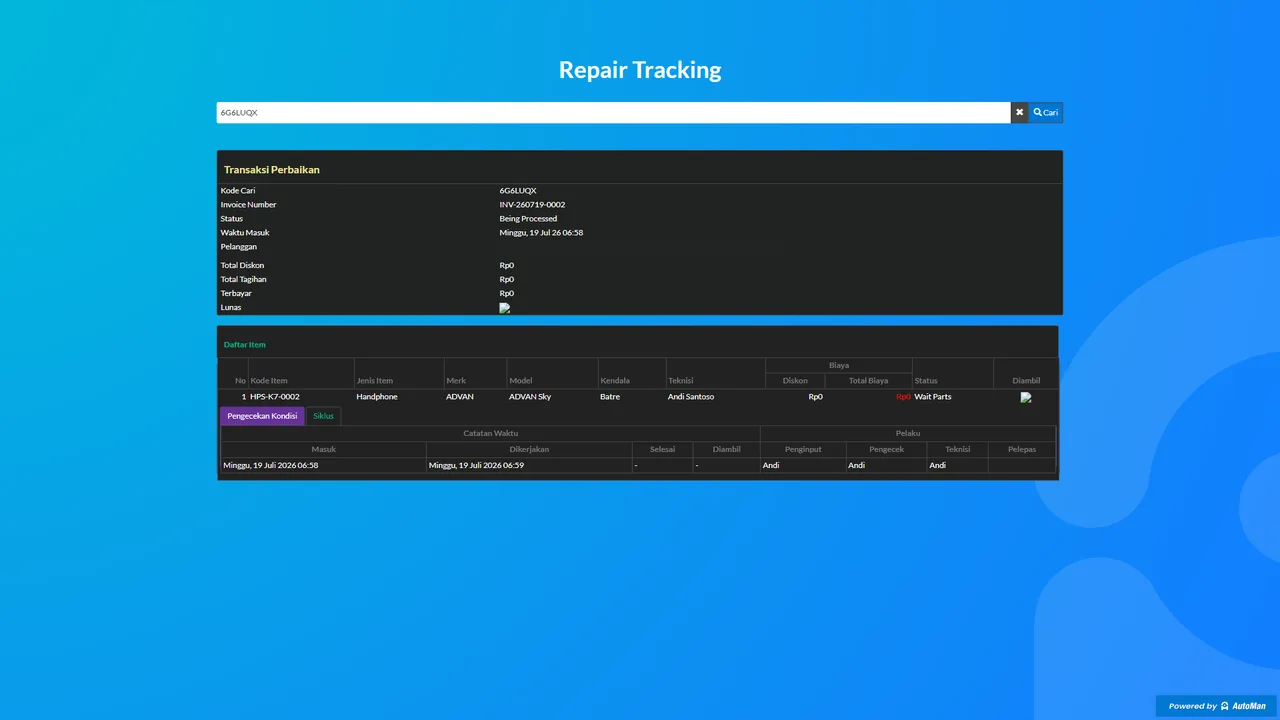
What separates this flow from merely “sharing a status”: everything shown on the public page is shop-controlled through settings — from a bare status up to the checklist and work history, the decision is yours.
Before you start
- The Repair Tracking feature is active.
- Receipt/WhatsApp templates available if you want the link inserted automatically.
Steps
-
Make sure repairs carry a tracking code (Search Code)
Every repair unit gets a public tracking code — labeled "Kode Cari" (Search Code) in the app. Check its settings in Settings → Repairs → Repair Tracking.

Every repair unit has its own public tracking code. -
Show the code/QR on the receipt, or send the link via WhatsApp
The code and QR can print on the intake receipt; the tracking link can also go out in a WhatsApp message.

Code and QR print on the receipt; the link can also go via WhatsApp. -
Insert %URLTRACK% into the WhatsApp template
When using WhatsApp, add the %URLTRACK% variable to the template — the system replaces it with that unit's tracking link automatically.

The system swaps %URLTRACK% for that unit's tracking link. -
Configure what customers are allowed to see
Through toggles in the tracking settings: condition checklist, work cycle, service/part list, login button — the shop decides what shows.

The shop decides what information shows publicly. -
Have the customer open the tracking page and enter the code
Test it once yourself from a phone: scan the QR/open the link, enter the code, and confirm what shows matches the shop's decision.

Test it once from a phone before rolling it out to customers.
What you end up with
Customers check their repair status on their own, with data limited per the shop's settings — repeated status questions drop.
If something goes wrong
The customer can't open the tracking page
Re-check the URL, the tracking code, and your shop's domain — make sure what's printed on the receipt matches what's active.
The visible data feels like too much
Open the privacy toggles in the tracking settings and turn off the sections you don't want public.
The WhatsApp link doesn't appear
Check the template (the %URLTRACK% variable) and the shop's WhatsApp connection status.