

Back Up Data before a Reset or Big Import
This short tutorial has one message: before any big change — an Excel import, a data reset, initial migration, or a master-data overhaul — back up first.
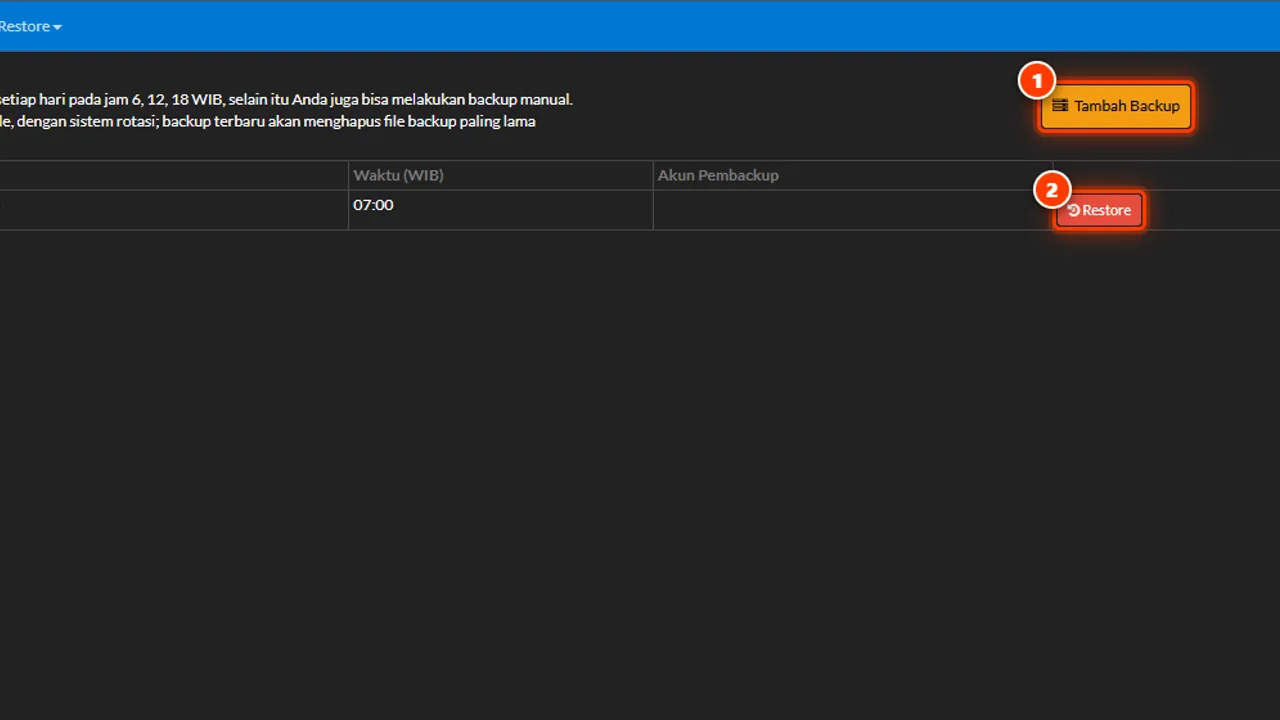
Mass changes rewrite a lot of data at once, and some of their mistakes only surface days later. A backup made right before the change is the only cheap way back.
Before you start
- Admin access.
- The Backup & Restore module available.
Steps
-
Open Settings → Backup & Restore
This feature is available to the admin role — not to every user.

The feature follows admin permissions — not every user sees it. -
Create a fresh backup before the import/reset
The backup is your return point. Never rely on an old backup — make a new one right before the change.

A fresh backup = your return point. Never rely on an old one. -
Note the time and reason for the backup
A short note ("before July product import") makes the backup easy to recognize when needed.

A short note makes the backup easy to recognize when needed. -
Run the import/reset after the backup finishes
Wait for the backup to be declared complete first — never run a big change alongside a backup in progress.

Wait for the backup to finish — then run the big change. -
Keep a change note
What changed, when, by whom — so it's easy to trace if the result disappoints.

The change note eases tracing if the result disappoints.
What you end up with
Big changes (imports/resets) run with a clear return point — if the result goes wrong, the data can be restored to its pre-change state.
If something goes wrong
Unsure whether the backup finished
Never run the reset/import before the backup is declared complete — waiting a few minutes beats losing the return point.
The Backup & Restore menu doesn't show
Check your modules and the user's access rights — the feature follows installed modules and admin permissions.
Where should the backup file be kept
Anywhere except the shop computer — Google Drive, an email to yourself, or a flash drive you do not use daily. A backup that only exists on the till computer disappears along with the till computer.
How long since my last backup
If you have to think about it, it has been too long. Make it a habit before three things: a large import, a data reset, and any settings change that touches many transactions.