

Setting Cashier and Technician Access Rights
While you run the shop alone, everyone shares one login and nobody minds. The trouble starts with your third employee: cost prices are visible to all, and when a figure looks wrong there is nobody to ask, because everybody is “us”.
Access rights settle that without suspicion — each person sees their own work, and every change carries a name.
One thing to straighten first: limiting access isn’t suspicion. Clear roles protect the staff who work honestly — when data changes, the trail shows who changed it, and those who didn’t stay unaccused.
Before you start
- Multi-user and Access Permission available in the Store App.
Steps
-
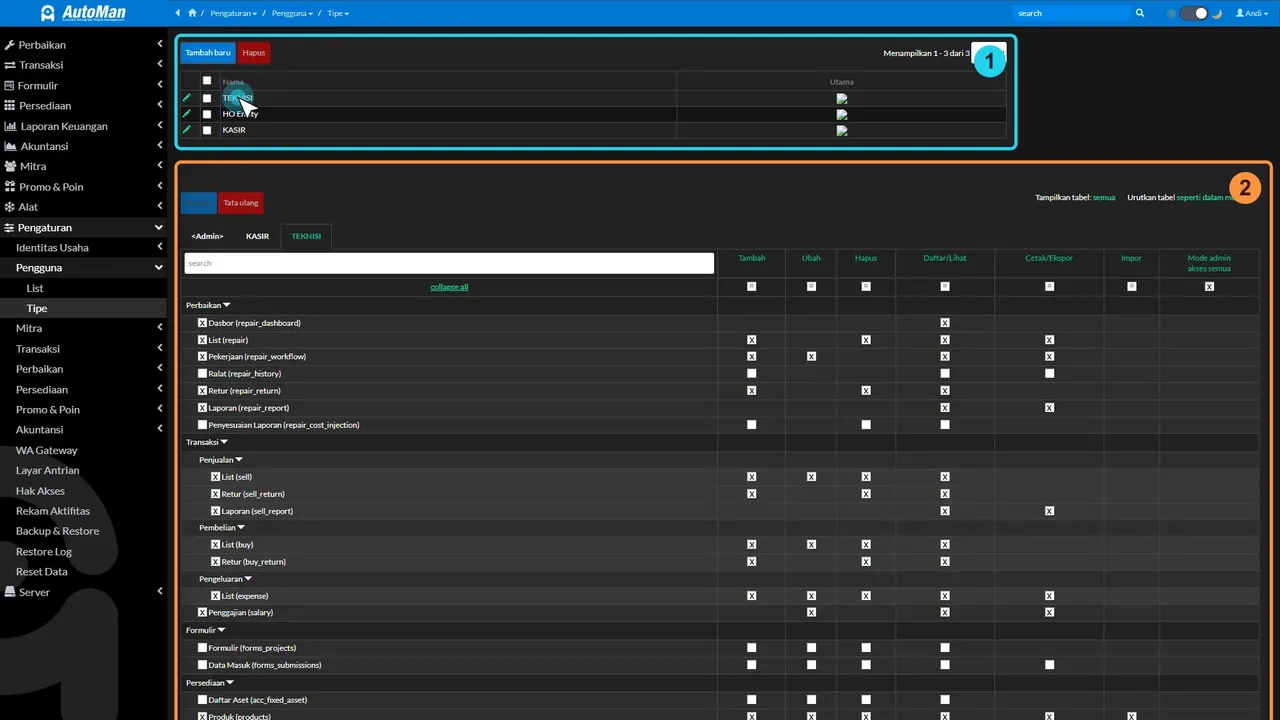
Create user Types (Settings → Users → Types)
Types are access molds: cashier, technician, front desk, purchasing. Configure access per type, not per person — much easier to maintain.

Configure access per group, not per person — easier to maintain. -
Add cashier and technician users (Settings → Users → List)
Every staff member gets their own account attached to their type. One shared account = a trail nobody can read.

One staff member, one account — the activity trail becomes readable. -
Set permissions per menu in Settings → Access Rights
The least-access principle: grant what the job needs, nothing more. A cashier doesn't need to delete purchases; a technician doesn't need financial reports.

Least access: grant only what the job needs. -
Confirm irrelevant menus stay hidden
Menus follow permissions — users only see what they may access. Fewer menus also means fewer misclicks.

Menus follow permissions — fewer menus, fewer misclicks. -
Test-login as the role
Before daily use, sign in as the cashier/technician and confirm what shows matches the plan.

Always test the role login before daily use. -
Check the Activity Log for data changes
Settings → Activity Log records who changed what and when — the companion to access rights as an operational audit trail.

The audit trail: who changed what, when.
What you end up with
Every staff member holds access matching their job, irrelevant menus stay hidden, and data changes leave a traceable trail.
If something goes wrong
A user still sees menus that should be hidden
Re-check the permissions on the group attached to that user — access is decided by the group, not the username.
Unsure the permissions are right
Test directly by logging in as that role before daily use.
My cashier can see cost prices and I would rather they could not
That is a setting of its own, not part of menu access. There is a specific option controlling whether non-admin staff may see cost price and COGS. Set it there rather than hiding the menu.
An employee left — what do I do with their account
Do not delete it. Their past transactions are attached to that account, and deleting it strips the names out of your history. Disable their access instead: the data stays intact, the person cannot get back in.