

Enabling the Accounting Module with the Wizard
One day somebody asks for your shop accounts — a bank, an investor, a tax officer. And all you can show them is a sales summary.
That is where the lite reports stop being enough. What gets asked for is a balance sheet and journals: statements in a shape accountants everywhere already agree on. The accounting module builds them from the transactions you have already recorded, not from re-entry.
The good news: stepping up to full accounting in Automan doesn’t mean learning debits and credits. The wizard asks in shop language — what’s the cash balance, who still owes, who hasn’t paid — and the system translates it into books. Once active, cashiers and technicians work exactly as before; journals are born automatically from the same transactions.
Before you start
- The Accounting module active in the Store App.
- Daily transactions already running cleanly (repairs, sales, purchases, expenses).
- Cash/bank balances and the payables-receivables list as of the books start date.
Steps
-
Confirm full accounting is what you actually need
Lite reports answer most shops' daily needs. Full accounting is for when formal statements are required: a balance sheet, journals, reports for taxes/banks/investors.

Lite for daily reading; full accounting for formal statements. -
Open the wizard at Settings → Accounting → GL Setup
The wizard walks the activation step by step — you don't design a chart of accounts yourself; the system prepares a standard repair-shop chart.

The wizard leads step by step — the chart of accounts is system-prepared. -
Fill in the shop's tax profile
VAT-registered or not determines how VAT is treated in journals and reports. Not registered? Skip it guilt-free — changeable later when the status changes.

VAT status decides VAT treatment — changeable later. -
Set the books start date (cut-over)
This is the boundary line: transactions from this date onward are journaled automatically. Pick a date that's easy to hold onto — the start of a month is the safest choice.

The start of a month = the safest books start date. -
Enter opening cash balances per pocket
Enter each pocket's real balance (cash drawer, bank accounts, e-wallets) as of the books start date. These opening balances are the baseline of every periodic report.

Opening balances per pocket = the baseline of every periodic report. -
Enter opening payables, receivables, and assets
Running supplier payables and customer receivables are carried in as opening balances, as are fixed assets (display cases, repair tools) if you want them depreciated.

Running payables, receivables, and assets carried in as opening balances. -
Run the wizard's validation
The wizard checks completeness before going live — follow its checklist until green. Better to be held at validation than to birth defective journals.

Follow the checklist to green before going live. -
Check your first reports
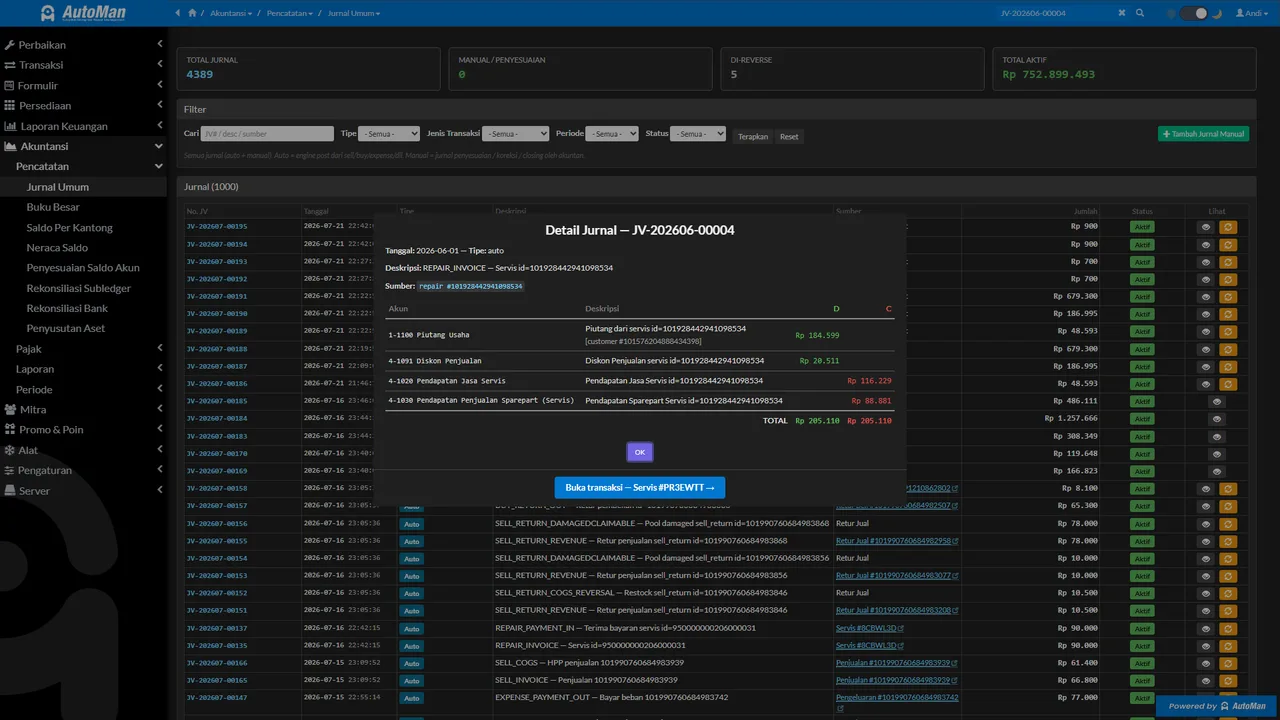
Once active, open the trial balance and P&L. Daily transactions since the books start date journal automatically — cashiers keep working exactly as before, no double entry.

Daily transactions journal automatically — no double entry.
What you end up with
The accounting module active with correct opening balances; daily transactions journaled automatically and formal statements (balance sheet, P&L, journals) readable without double entry.
If something goes wrong
Accounting report numbers differ from the lite reports
Check the books start date — accounting only books transactions from that date, while lite reads all transactions. The period before the start date belongs to the lite reports by design.
Opening balances entered wrong
The wizard can be reopened to fix opening balances before the period runs far. The sooner corrected, the cleaner the books.
Afraid of mistakes with no accounting background
The wizard is built for owners, not accountants: its questions target what the shop knows (cash balances, payables, receivables) — journals and accounts are the system's work.